
Lineflow guide: how to build tracks that flow
Updated 25 October 2026
Lineflow is a sandbox about one thing: draw a line, put a rider on a sled at the top, and see whether the run makes it to the end. There is no score and no level to beat, which makes knowing how the physics behaves the whole skill. This guide covers the tools and line types, what makes a rider crash, how to use the timeline to fix a run, and the habits that turn a scribble into a track that flows from start to finish.
The idea
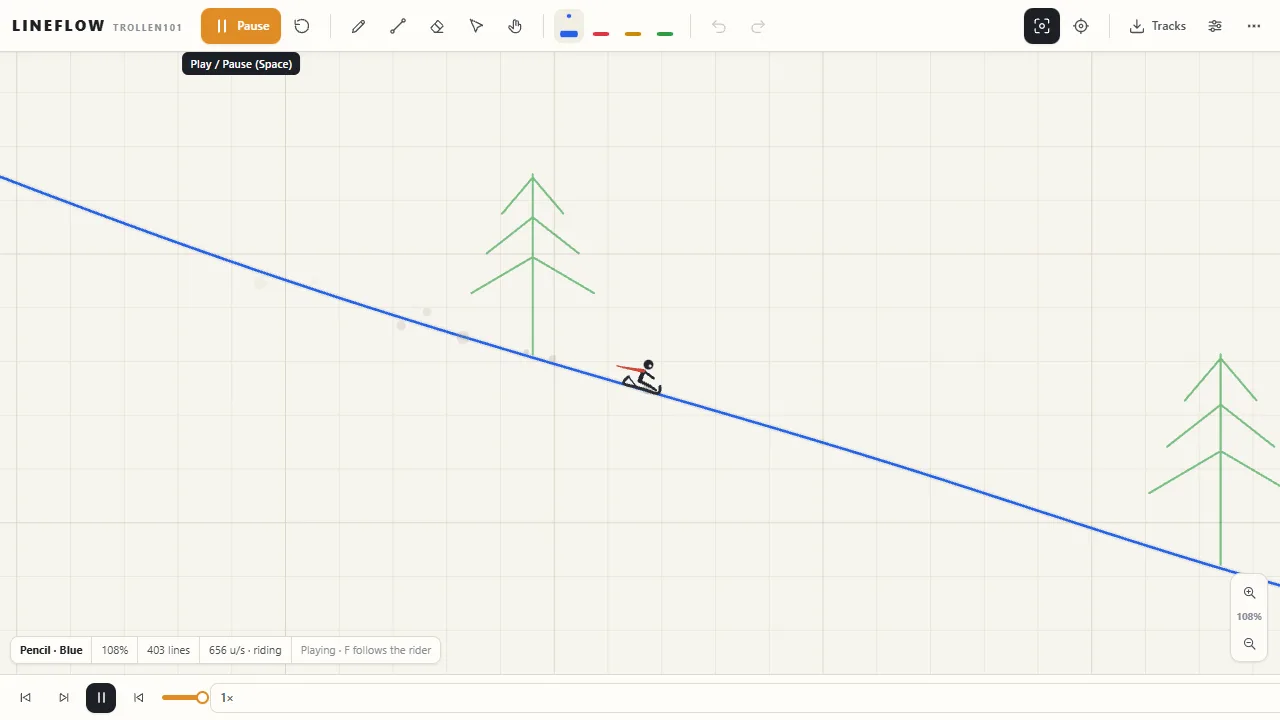
Drag with the pencil to draw a slope, then press Space. The rider is not a dot sliding along your line but a jointed body sitting on a sled, so the run behaves like a real one: smooth curves keep speed, ramps launch, and a bad landing throws the rider off. Draw, play, crash, edit and play again; that loop is the game.
If you would rather start from something that works, the Tracks panel has seven example tracks: Beginner downhill, Jump course, The loop, Mountain run, Speed course, Physics playground and Big stunt course. Taking one apart is the quickest way to see how loops and jumps are built.
Tools
- Pencil (P): freehand drawing. Best for long, flowing slopes.
- Line (L): one straight segment. Best for ramps, lips and joins you want exact.
- Eraser (E): removes lines.
- Select (S): pick lines to move, delete (Del), duplicate (Ctrl+D), rotate ([ and ], with Shift for 15-degree steps) or flip (X). Ctrl+A selects everything.
- Pan (H): move the view. You can also drag with the middle mouse button, or hold Alt and drag with any tool.
Z undoes and Y redoes, so experiment freely; even Clear track can be undone. Snap to line ends, on by default in Settings, joins a new line neatly to the end of an existing one, which matters more than it sounds.
The four line types
Pick a colour with 1 to 4:
- Blue (1): normal track.
- Red (2): accelerates the rider along it. Use it to rescue a run that is too slow to clear a jump or climb a hill.
- Amber (3): brakes. Use it before a landing or a tight section that keeps throwing the rider off.
- Green (4): scenery only. The rider passes straight through it, so draw trees, buildings and backgrounds without changing the run.
One-sided lines and loops
Every solid line has a solid face and a side the rider passes through. The solid face is the side the rider is on when you draw from left to right. If a rider ever drops straight through a line that looks solid, that line is facing the other way.
It is also how loops are built. Draw the loop, select the part where the rider is upside down on the inside, and press X to flip its collision side so the rider rides along the inside of it. Turn on Show collision side in Settings to see which way every line faces.
Why riders crash
There are two ways to crash, and knowing which one happened tells you what to fix:
- The rider's head hits a line too hard. Usually a low ceiling, a jump that lands upside down, or a line drawn across the rider's path.
- The rider is torn off the sled. The rider and sled are joined by links that only stretch so far. A sudden jolt, such as landing hard on a slope facing the wrong way or hitting a sharp corner at speed, pulls them apart. Once one link goes, the rider comes off the sled entirely.
A crash stops the run and says so. Press R to put everyone back at the start. Crash tolerance in Settings, from 0.3 to 3 times, makes both kinds of crash harder or easier to cause.
Building a track that flows
- Curves, not corners. The rider keeps speed through a smooth curve and loses it, or the sled, at a sharp angle. Where two lines meet, make the join as smooth as you can.
- Land on a downslope. A landing that matches the angle the rider is falling at keeps them on the sled. A flat or uphill landing is the most common crash there is.
- Check the lip of every ramp. A small upturn at the end of a slope launches the rider, sometimes when you did not mean it to. Smooth it out, or lean into it and build the jump properly.
- Do not dig holes you cannot climb out of. A dip deeper than the speed you carry into it traps the rider at the bottom. Red line helps, but a shallower dip is the real fix.
- Build in stages. Draw the next section, play to it, fix it, and only then draw the one after. The camera and the timeline make this quick.
The timeline and playback
Every run is recorded as it plays, up to five minutes of simulation, and the timeline under the canvas lets you move through it:
- Drag the scrubber to any moment, or step one frame at a time with , and .. Stepping through the frames before a crash shows exactly what went wrong.
- Set the playback speed to 0.1, 0.25, 0.5, 1, 2, 4 or 8 times. Slow motion is for diagnosing a crash; fast forward is for checking a long track quickly.
- Change the track and the run goes back to the start, because the recording no longer matches the line.
Follow rider (F) keeps the camera on the rider; Fit to track pulls back to show the whole course; 0 resets the camera. The mouse wheel or + and - zoom.
More riders
Add riders from the menu or the Tracks panel, up to twelve, to send several down the same line at once. It is the fastest way to find a section that only works by luck: if some riders make it and others do not, that part of the track needs work.
Settings worth knowing
- Physics: gravity, friction, how strong red lines are, the rider's size, how strong amber lines are, the launch speed at the start, crash tolerance, and simulation quality (Fast, Normal or High).
- Camera and view: camera smoothing, line thickness, the paper grid, the rider's trail and its length, collision sides, a trajectory preview, and visual effects.
- System: sound, autosave and snapping. Settings can be restored to the defaults at any time.
- Debug: a debug overlay (D) that can show contact points, the rider's bones and joints, collision normals, the velocity vector and the collision grid. Fascinating if you want to see how the physics works.
Saving and sharing tracks
Lineflow autosaves your current track in the browser and restores it next time. The Tracks panel saves named tracks, loads them again, and exports a track as a file that you can send to somebody else to import into their own Lineflow. Saved tracks live in this browser only, so export anything you want to keep.
Touch screens
One finger draws with the current tool, two fingers pan, and pinching zooms. The page does not scroll while you are over the canvas.
All the shortcuts
Space play or pause, R restart the run, P L E S H pencil, line, eraser, select and pan, 1 to 4 line colour, Z and Y undo and redo, , and . step a frame, F follow the rider, 0 reset the camera, G the grid, T the trail, M mute, D the debug overlay and Esc to deselect or close a panel. Controls & help in the menu lists them all in the game.
Lineflow is made by Trollen101: original physics and art in a single page with nothing to install.
Ready to play?
Lineflow runs in your browser, free, with nothing to install. Play Lineflow now, or browse the categories for something else.
More guides
- Playing online with friends
- Keepsies: a guide to mibs, marbles and the eight Rings
- Little Bubbling: a guide to brewing, selling and staying out of the cells
- Syphon's Slap Arena: how to slap harder, defend and win the Slap League
- Chaos Island: how to survive every disaster
- Camp Kindling: a guide to your first nights
- Tall Tails: a fishing guide
- Contrail Cup: planes, stages and racing tips
- Pulsar League: a beginner's guide to rocket football
- Packfall: playing with your dog, and staying alive
- Acheron: a guide to your first escape
- Secret of Rapture: a spoiler-light guide
- Veyrfall: a tactics guide to the Broken Dominion
- Greenside: a golf guide to all nine holes
- Road Riot: a guide to fighting, racing and staying out of handcuffs
- Lockdown: Undead strategy: how to survive more rounds
- Survillian guide: how to survive, level up and prestige
- Tilt guide: three stars, every world and the level editor
- Neon Rush tips: how to run further and score higher
- Blackjack basic strategy: when to hit, stand, double or split
- How to play Texas Hold'em: hands, odds and position
- 8 ball pool rules: fouls, ball in hand and how to win
- Air hockey rules and tips: how to score and defend
- Bowling scoring explained: strikes, spares and the 10th frame
Spotted something out of date? Games here are updated often, so tell us through the contact page and we will fix the guide.